Why Convert Photos to Text?
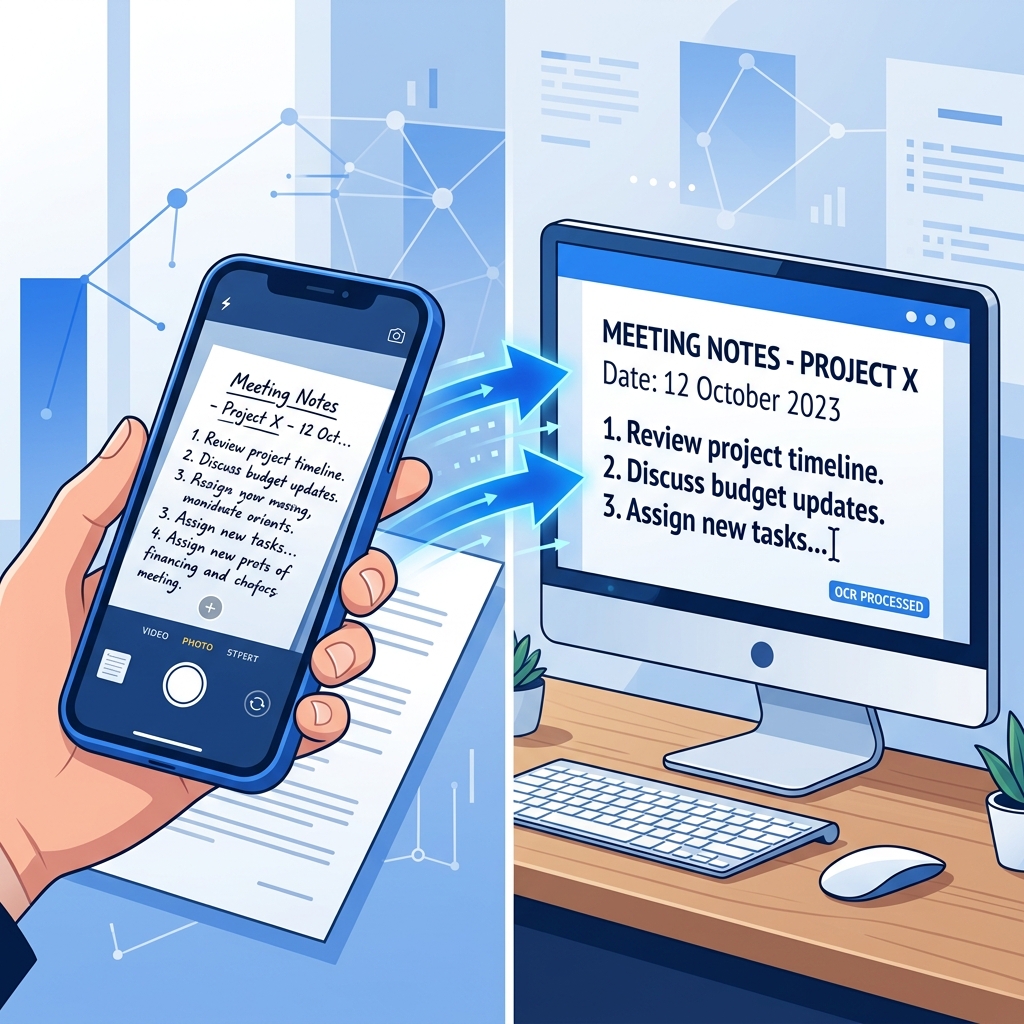
Your phone camera is the most powerful scanner you own. Every day, you photograph documents, whiteboards, menus, signs, labels, and notes. But that text is locked inside the image — you can't copy, edit, or search it.
Converting photos to text (using OCR technology) unlocks that content. In seconds, you get editable, searchable, copy-paste-ready text from any photo.
How to Convert a Photo to Text (3 Simple Steps)
Step 1: Take a Clear Photo
The quality of your photo directly affects the accuracy of text extraction:
- Hold your phone steady — blurry images give poor results
- Get good lighting — natural light works best, avoid shadows
- Fill the frame — get close to the text, crop out unnecessary background
- Keep it straight — photograph from directly above, not at an angle
Step 2: Upload to Photo-to-Text Converter
Open our Photo to Text converter in any browser. You can:
- Drag and drop the photo from your gallery
- Click "Choose File" to browse your photos
- Paste from clipboard if you copied the image
Step 3: Copy Your Text
The OCR engine processes your photo in seconds. You'll see the extracted text ready to copy. Click the "Copy" button and paste it anywhere — email, document, notes app, or spreadsheet.
Device-Specific Instructions
iPhone / iPad
- Take a photo or open an existing one from Photos
- Open Safari and go to ImageToText.net/tools/photo-to-text
- Tap "Choose File" → "Photo Library"
- Select your photo
- Copy the extracted text
Tip: iOS 15+ has built-in Live Text, but our tool handles more languages and gives better results with complex layouts.
Android
- Take a photo or open from Gallery
- Open Chrome and go to ImageToText.net/tools/photo-to-text
- Tap "Choose File" → select your photo
- Copy the result
Tip: You can share a photo directly from Gallery to Chrome for faster workflow.
Windows PC
- Transfer your photo to your PC, or take a screenshot
- Open any browser and go to ImageToText.net/tools/photo-to-text
- Drag and drop the image file onto the upload area
- Copy the extracted text
Mac
- Open any browser and navigate to ImageToText.net/tools/photo-to-text
- Drag the photo from Finder or Desktop onto the upload area
- Copy your text
What Types of Photos Work Best?
| Photo Type | Accuracy | Tips |
|---|---|---|
| Documents & letters | 95-99% | Best results — clean text on white paper |
| Book pages | 90-95% | Press pages flat, avoid gutter shadows |
| Screenshots | 95-99% | Already digital — excellent results |
| Whiteboards | 80-90% | Use good lighting, avoid glare on glossy boards |
| Street signs | 85-95% | Get close, minimize background clutter |
| Menus & labels | 85-95% | Good lighting is key for glossy surfaces |
| Handwritten notes | 70-85% | Print-style writing gives better results |
Common Questions
Does it work with any phone camera?
Yes. Any phone camera from the last 5 years takes photos with enough resolution for accurate OCR. Even older phones work for large, clear text.
Can I convert multiple photos at once?
Process one photo at a time for best results. Each photo takes only a few seconds, so batch processing is quick even manually.
What languages are supported?
Our converter supports 28+ languages. Select the correct language from the dropdown before processing for best accuracy.
Are my photos private?
Yes. Our tool processes photos entirely in your browser. Your images never leave your device, are never uploaded to any server, and are never stored anywhere.
Try It Now
Ready to convert your photos to text? Our Photo to Text Converter is free, works on any device, and requires no downloads or sign-ups. Try it with any photo right now.