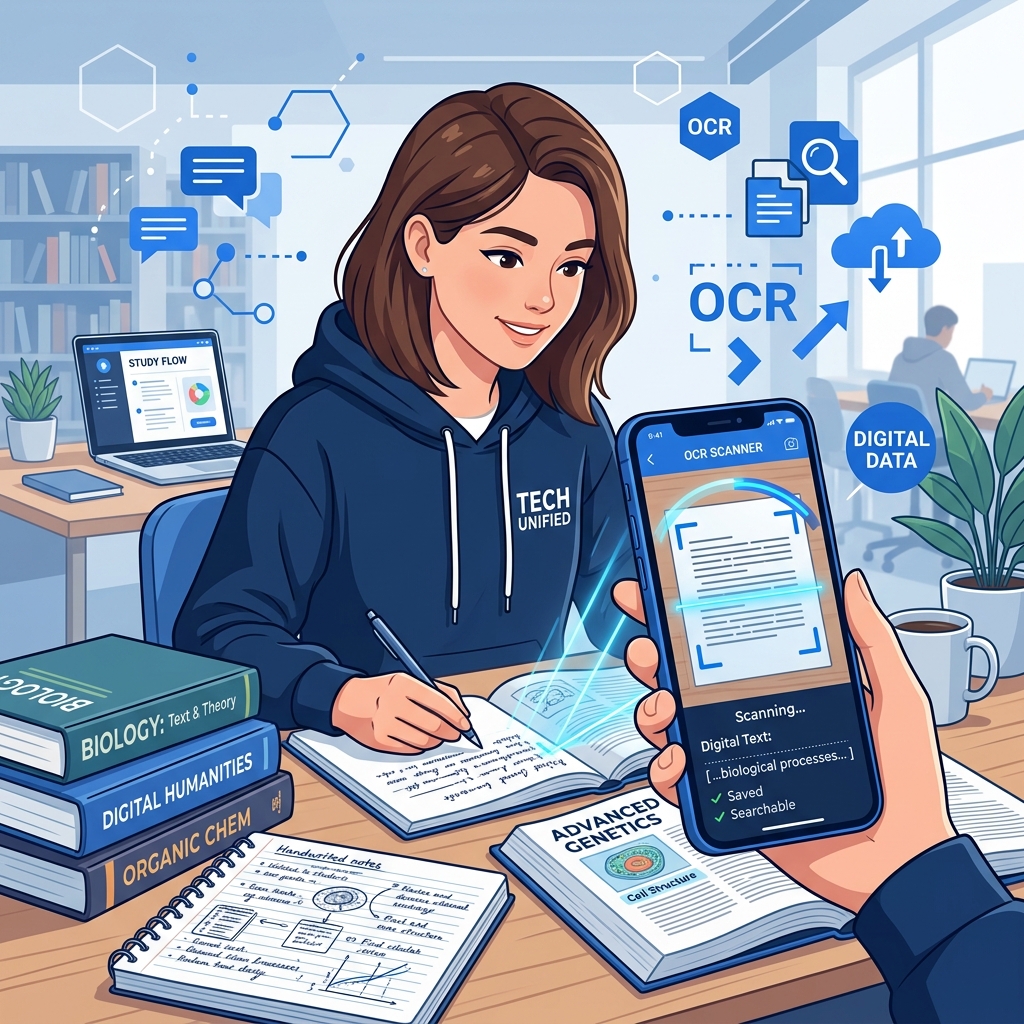
The Student's Time Problem
If you're a student, you know the struggle: you have pages of handwritten notes, textbook passages you need to quote, and lecture slides you want to convert into editable study materials. Retyping all of that manually takes hours you don't have.
OCR (Optical Character Recognition) solves this. It converts images of text — your notes, textbook photos, screenshots — into editable, searchable, copy-paste-ready text in seconds.
5 Ways Students Use OCR Every Day
1. Digitize Handwritten Notes
Take a photo of your handwritten notes after class, upload it to a Handwriting to Text converter, and get a digital version you can paste into Google Docs, Notion, or your notes app.
Why it helps:
- Searchable notes — find any topic instantly instead of flipping through pages
- Backup — never lose notes if you lose your notebook
- Shareable — send clean digital notes to classmates
2. Extract Text from Textbooks
Need to quote a passage from a physical textbook? Instead of typing it word by word:
- Take a clear photo of the page
- Upload to Book Page Scanner
- Copy the extracted text into your essay or study guide
This is especially useful for creating study guides, flashcards, or annotated bibliographies.
3. Convert Lecture Slides to Notes
Many professors share slides as images or PDFs that aren't text-selectable. Use OCR to extract the text from slide screenshots so you can:
- Add your own annotations
- Reorganize the content into your note-taking format
- Create study flashcards from key points
4. Scan Whiteboards After Class
Before the professor erases the whiteboard, snap a photo. Later, run it through the Whiteboard to Text converter to get all the equations, diagrams, and notes in text format.
5. Research and Citation
When researching from physical sources (library books, printed journals, archived documents), OCR lets you quickly extract quotes and data without manual transcription.
Tips for Better OCR Results with Study Materials
- Good lighting is key — avoid shadows across your notes
- Hold your phone straight above the page, not at an angle
- Use a dark pen — light pencil marks are harder for OCR to detect
- Write clearly — print-style writing gets better results than cursive
- Crop the image — remove desk backgrounds and focus on just the text
Best OCR Tools for Students
| Task | Recommended Tool |
|---|---|
| Handwritten notes | Handwriting to Text |
| Textbook pages | Book Page Scanner |
| Lecture screenshots | Screenshot to Text |
| Whiteboard photos | Whiteboard to Text |
| General photos | Photo to Text |
Privacy Matters for Students
A major concern with online tools is privacy — especially when uploading study materials that might contain personal information. Our OCR tools process everything in your browser. Your images never leave your device, and nothing is stored on any server.
Start Saving Time
Stop retyping. Start scanning. Our Image to Text Converter is free, works on any device, and processes unlimited images. Try it with your notes today.