Pictures With Text Are Everywhere
We deal with text-in-pictures constantly:
- A friend screenshots a recipe and sends it to you
- Your professor projects slides you need to take notes from
- A colleague texts a photo of a printed schedule
- You photograph a restaurant menu to remember later
- An error message appears on screen and you screenshot it
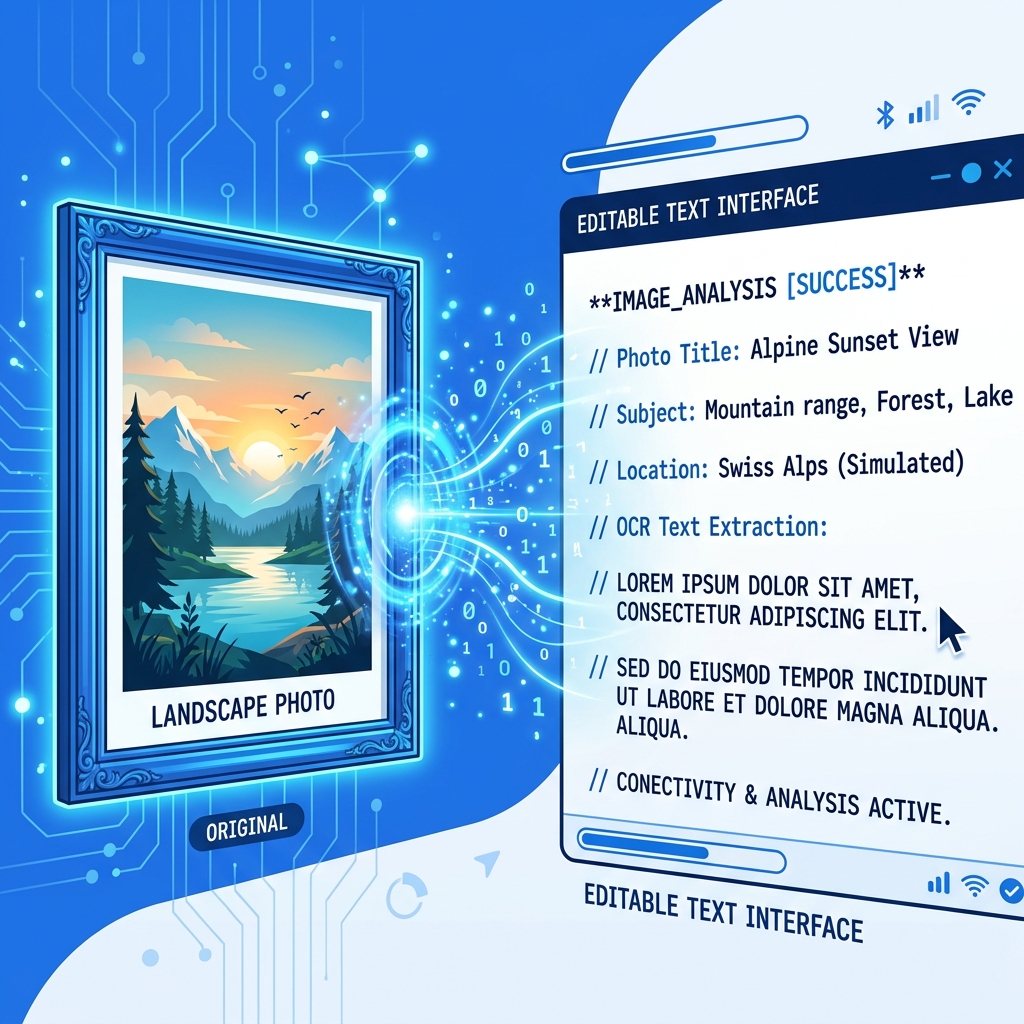
In every case, you want the text, not the picture. Here's how to get it.
The Fastest Method (Under 10 Seconds)
- Open Picture to Text in your browser
- Drop your picture onto the upload area
- Click "Convert to Text"
- Click "Copy" — done
No sign-up. No download. No payment. Works on phone, tablet, and computer.
What Types of Pictures Work?
Camera Photos
Photos taken with your phone or digital camera. These work great as long as the text is reasonably clear and well-lit. Our Photo to Text converter handles these excellently.
Screenshots
Screenshots from any device — computer, phone, or tablet. These actually produce the best OCR results because the text is digitally rendered (not photographed). Try Screenshot to Text.
Scanned Images
Documents scanned with a flatbed scanner or scanner app. Usually high quality with excellent OCR accuracy. Use Document Scanner.
Downloaded Images
Images from the web, email attachments, or messaging apps. Quality varies, but most produce good results.
Social Media Screenshots
Screenshots of tweets, Instagram posts, or Facebook content. Clean, consistent formatting makes these easy to process.
Step-by-Step for Each Device
iPhone
- Open Safari
- Navigate to ImageToText.net/tools/picture-to-text
- Tap "Choose File" → "Photo Library"
- Select your picture
- Tap "Convert to Text"
- Long-press the result → "Copy"
Android
- Open Chrome
- Go to ImageToText.net/tools/picture-to-text
- Tap "Choose File"
- Select from Gallery or Files
- Tap "Convert to Text"
- Copy the result
Windows / Mac
- Open any browser
- Go to ImageToText.net/tools/picture-to-text
- Drag your picture file directly onto the upload area (fastest method)
- Click "Convert to Text"
- Click "Copy to Clipboard"
Making the Most of Your Results
Cleaning Up OCR Output
After extraction, you may want to:
- Fix line breaks — OCR sometimes adds line breaks where the original had continuous text
- Correct minor errors — Characters like I/l/1 or O/0 may be confused
- Remove headers/footers — If you scanned a full page, you may get page numbers or headers in the output
- Format the text — Add your own headings, bold, and structure
Pasting Into Different Apps
| App | Paste Shortcut | Notes |
|---|---|---|
| Google Docs | Ctrl/Cmd + V | Pastes as plain text |
| Microsoft Word | Ctrl/Cmd + Shift + V | Use this for paste-without-formatting |
| Ctrl/Cmd + V | Works in Gmail, Outlook, etc. | |
| Notes app | Ctrl/Cmd + V | Works in Apple Notes, Google Keep |
| Spreadsheet | Ctrl/Cmd + V | Each line becomes a row |
Common Use Cases
- Students: Convert textbook photos to study notes
- Workers: Extract text from scanned documents
- Travelers: Read foreign language signs and menus
- Researchers: Digitize printed source materials
- Content creators: Extract text from reference images
Privacy Guarantee
Your pictures are processed entirely in your browser. They are never uploaded to any server, never stored, and never accessed by anyone. This makes our tool safe for sensitive content like personal documents, medical records, and confidential business materials.
Convert Your First Picture
Try it right now — open Picture to Text or Pic to Text and upload any picture. You'll have editable text in seconds.