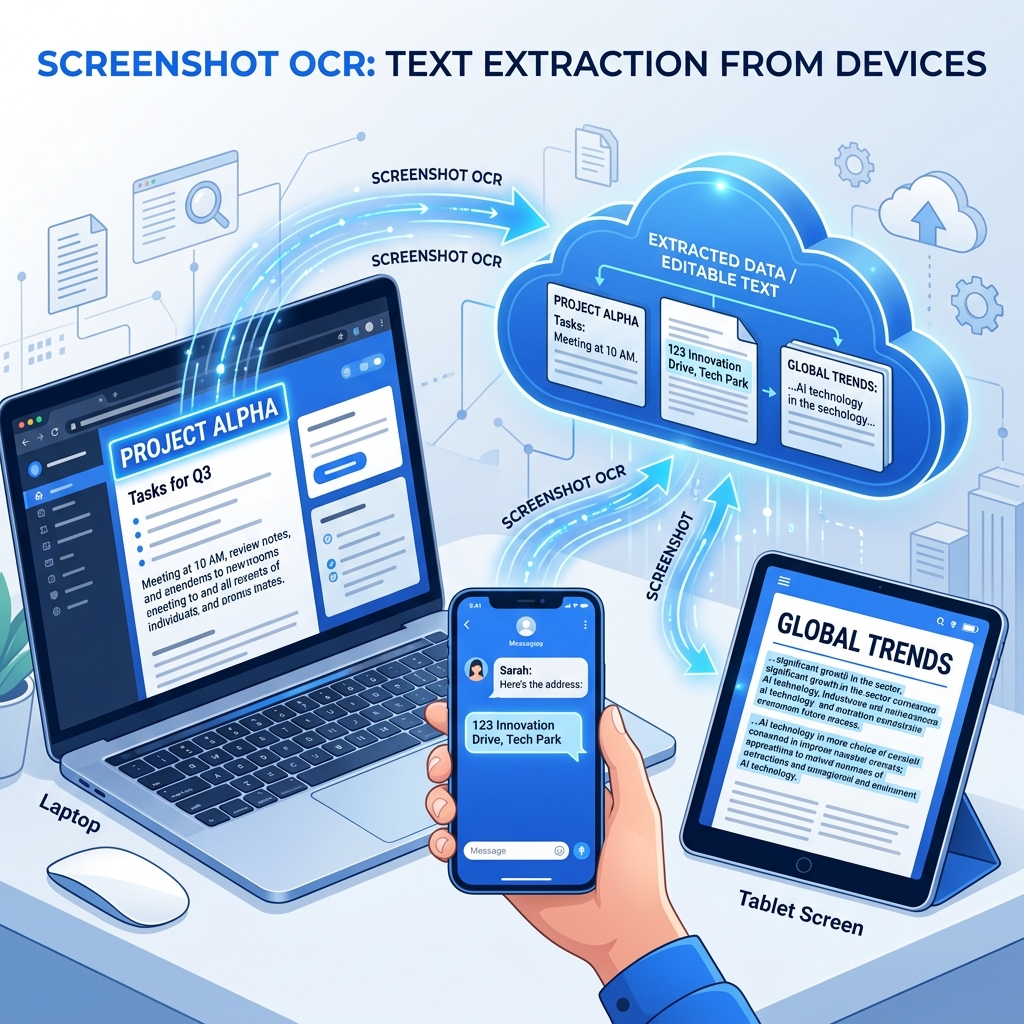
The Screenshot Problem
You take a screenshot of an error message, a social media post, a chat conversation, or a product listing — and now you need the text. But screenshots are images, not text. You can't select, copy, or search the text inside them.
This is where screenshot OCR comes in. It reads the text from your screenshot image and gives you editable, copyable text.
Method 1: Online Tool (Works on Any Device)
The fastest and most universal method — works on Windows, Mac, Linux, phone, or tablet.
Steps:
- Take your screenshot
- Open Screenshot to Text converter
- Upload or drag your screenshot
- Click "Convert to Text"
- Copy the extracted text
Pros: Works everywhere, no installation, free, private (browser-based)
Method 2: Windows (Built-in Options)
Windows Snipping Tool (Windows 11)
Windows 11's updated Snipping Tool has built-in OCR:
- Press
Win + Shift + Sto take a screenshot - Open the screenshot in Snipping Tool
- Click the "Text Actions" button
- Select and copy the recognized text
Microsoft PowerToys Text Extractor
- Install PowerToys from Microsoft Store
- Press
Win + Shift + T - Draw a rectangle around the text on screen
- Text is automatically copied to clipboard
Pros: Keyboard shortcut, works on any visible text Cons: Only captures what's currently on screen
Method 3: Mac (Built-in Options)
macOS Live Text (Monterey+)
- Open your screenshot in Preview or Photos
- Hover over the text — your cursor will change to a text selection cursor
- Click and drag to select the text
- Press
Cmd + Cto copy
macOS Screenshot + Quick Look
- Take a screenshot with
Cmd + Shift + 4 - Press Space to preview it with Quick Look
- Select text directly in the preview
Pros: Built into the OS, no extra software Cons: Doesn't work well with stylized or handwritten text
Method 4: iPhone / iPad
iOS Live Text (iOS 15+)
- Open the screenshot in Photos
- Tap and hold on the text in the image
- Select the text you want
- Tap "Copy"
Using Safari
- Open Screenshot to Text in Safari
- Tap "Choose File" and select your screenshot
- Copy the extracted text
Method 5: Android
Google Lens
- Open Google Photos or the Google app
- Select your screenshot
- Tap the Google Lens icon
- Tap "Text" at the bottom
- Select and copy the text
Using Chrome
- Open Screenshot to Text in Chrome
- Upload your screenshot
- Copy the result
Which Method Is Best?
| Method | OS | Accuracy | Ease | Privacy |
|---|---|---|---|---|
| Online OCR tool | Any | ⭐⭐⭐⭐⭐ | ⭐⭐⭐⭐⭐ | ✅ Browser-based |
| Windows Snipping Tool | Win 11 | ⭐⭐⭐⭐ | ⭐⭐⭐⭐ | ✅ On-device |
| PowerToys | Win 10/11 | ⭐⭐⭐⭐ | ⭐⭐⭐⭐⭐ | ✅ On-device |
| macOS Live Text | Mac | ⭐⭐⭐⭐ | ⭐⭐⭐⭐⭐ | ✅ On-device |
| iOS Live Text | iPhone | ⭐⭐⭐⭐ | ⭐⭐⭐⭐⭐ | ✅ On-device |
| Google Lens | Android | ⭐⭐⭐⭐⭐ | ⭐⭐⭐⭐ | ❌ Cloud-based |
Common Screenshot Text Extraction Scenarios
Error Messages
Extracting error messages from screenshots is one of the most common use cases. Copy the error text to paste into Google or Stack Overflow for troubleshooting.
Social Media Posts
Need to quote a tweet, Instagram caption, or Reddit comment? Screenshot it and extract the text instead of retyping.
Chat Conversations
Extract text from WhatsApp, Discord, or Slack screenshot conversations for documentation or reference.
Product Listings
Copy product names, descriptions, and prices from e-commerce screenshots for comparison shopping.
Code Snippets
When someone shares code as an image (common in tutorials and Stack Overflow screenshots), OCR can extract it so you can actually use it.
Tips for Better Screenshot OCR
- Don't resize screenshots — use the original resolution
- Use light mode — dark text on light background works better than dark mode
- Capture only what you need — crop out toolbars, taskbars, and other UI elements
- Avoid partial text — make sure no text is cut off at the edges
- Save as PNG — screenshots are already PNG by default on most systems; don't convert to JPG
Extract Text from Your Screenshots Now
Try our Screenshot to Text converter — it handles screenshots from any device, any OS, and any application. Free, fast, and private.