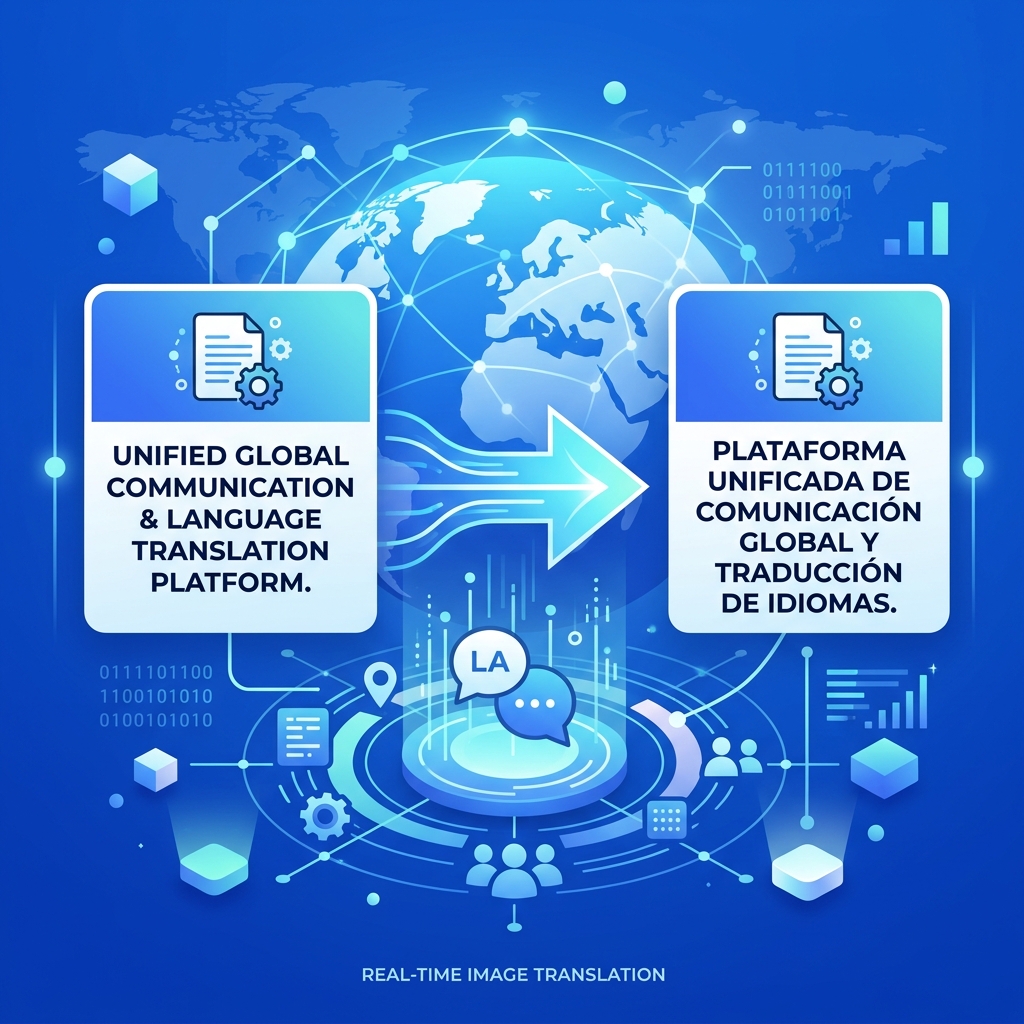
The Challenge: Text in Images + Foreign Languages
You've received a document in Japanese. A friend sent a screenshot in Arabic. You photographed a menu in French while traveling. The text is locked inside an image AND it's in a language you don't speak.
This is a two-step problem that's easy to solve:
- Extract the text from the image (OCR)
- Translate the extracted text (Google Translate or similar)
Step-by-Step: Extract and Translate
Step 1: Extract Text from the Image
- Open our Image to Text Converter
- Important: Select the source language from the dropdown (the language in the image, NOT your language)
- Upload the image
- Click "Convert to Text"
- Copy the extracted text
Step 2: Translate the Text
- Open Google Translate
- Paste the extracted text in the left box
- Select your target language on the right
- Get your instant translation
That's it — two free tools, zero cost, works with any language pair.
Why This Two-Step Method Works Best
You might wonder: why not use Google Translate's built-in camera feature? Here's why our approach is often better:
| Feature | Google Translate Camera | OCR + Translate (Two-Step) |
|---|---|---|
| Accuracy | Sometimes garbled | Higher — dedicated OCR is more accurate |
| Editable text | No — only shows translation | Yes — you get both original and translation |
| Works with images/screenshots | No — camera only | Yes — any image file |
| Batch processing | One frame at a time | Process then translate paragraphs |
| Privacy | Uploads to Google servers | OCR is local, only translation goes online |
Language-Specific Tips
Japanese / Chinese / Korean
These languages use complex character systems. For best results:
- Use high-resolution images — small characters need more pixels
- Select the exact language (e.g., "Chinese Simplified" vs "Chinese Traditional")
- Prefer horizontal text over vertical text for better OCR accuracy
Arabic / Hebrew / Urdu
Right-to-left (RTL) languages require:
- Setting the correct language before processing — this tells the engine the reading direction
- Clear, printed text — handwritten Arabic is particularly challenging for OCR
- After extraction, the text may appear left-to-right in some contexts; pasting into Google Translate or a word processor will correct the direction
European Languages (Spanish, French, German, etc.)
These work very well because they use Latin script similar to English:
- Accented characters (é, ñ, ü, ç) are handled automatically when you select the right language
- You can often leave the language set to "English" and still get readable results, then translate manually
Hindi / Thai / Other Indic Scripts
- Select the exact language — these scripts are very different from Latin
- Use high contrast images — diacritical marks and connecting lines need to be clearly visible
- Printed text works much better than handwritten for these scripts
Real-World Use Cases
Travel
Photograph foreign menus, signs, transit maps, and instructions. Extract and translate to navigate confidently in any country.
Business
Translate incoming documents, invoices, or contracts from international partners without waiting for a professional translator.
Education
Research sources in other languages. Extract text from foreign-language academic papers, then translate for review.
Shopping
Translate product descriptions, ingredient lists, and care labels on imported products.
What About Google Lens?
Google Lens can translate text directly from images, but it has limitations:
- Requires a Google account
- Works best with the camera, not saved images
- Sends your images to Google servers
- Less accurate with complex layouts or multiple text blocks
Our two-step approach gives you more control, better accuracy, and a private OCR step.
Try It Now
Start by extracting text from your image:
- Image to Text Converter — supports 28+ languages
- Img to Text — quick and simple
- Free Image to Text Converter — no limits
Then paste the result into your preferred translation service. The whole process takes under 30 seconds.