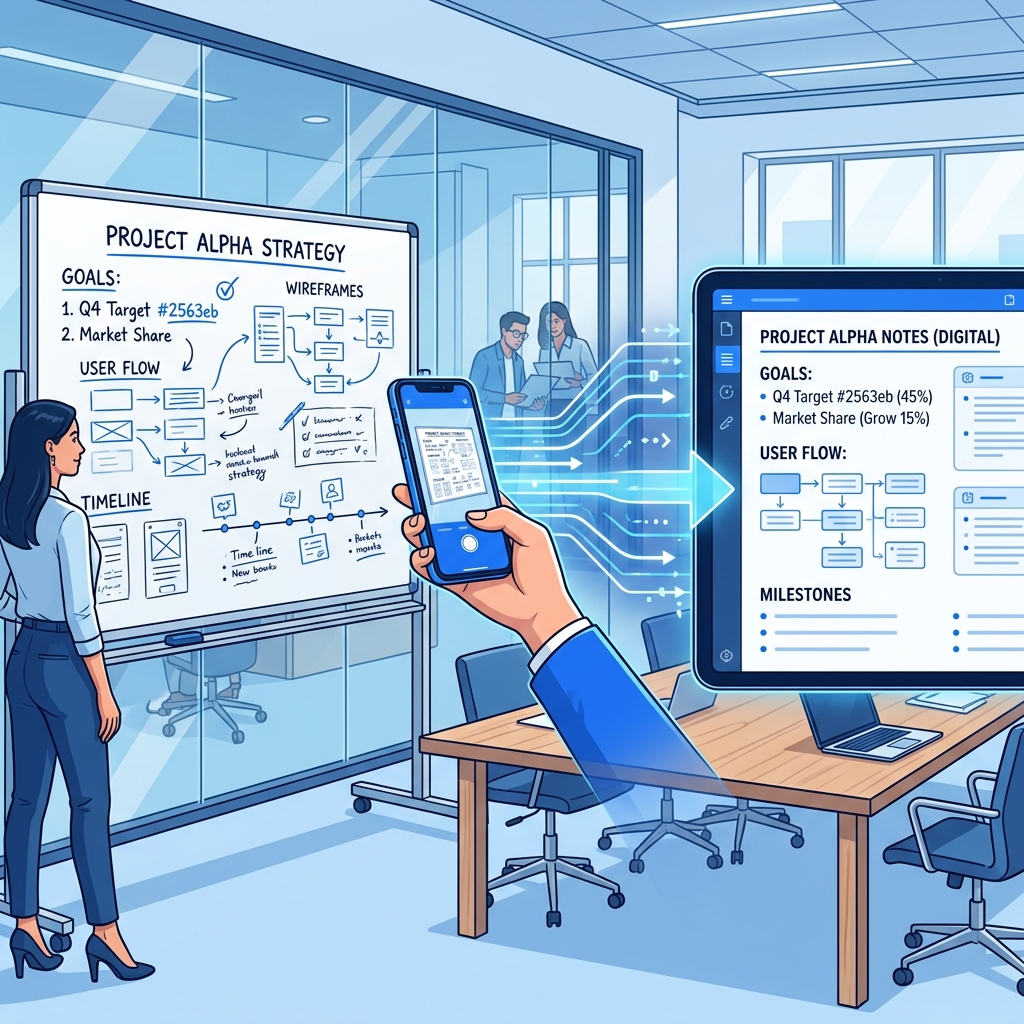
Why Digitize Your Whiteboards?
Whiteboards are the backbone of brainstorming sessions, sprint planning, and project discussions. But their content is temporary — one erase and hours of collaborative thinking vanishes.
Digitizing whiteboard content solves this permanently. With a quick photo and OCR, you can convert whiteboard notes into editable, searchable, shareable text that your entire team can reference.
How to Photograph a Whiteboard (For Best OCR Results)
Most people photograph whiteboards poorly. Follow these tips for dramatically better results:
1. Position Yourself Correctly
- Stand directly in front of the whiteboard, centered
- Your phone should be parallel to the whiteboard surface
- Step back far enough to capture the entire board without extreme angles
2. Manage Lighting and Glare
Whiteboards are glossy — they reflect light, creating bright spots that hide text:
- Turn off overhead lights directly above the whiteboard if possible
- Close blinds on windows that face the whiteboard
- Move to different angles until you find one without glare
- Never use flash — it creates a massive glare spot
3. Optimize Camera Settings
- Turn off flash (always)
- Tap on the text area to let your phone focus there
- Enable HDR mode if available — it balances bright and dark areas
- Use document scan mode if your phone has one (Google Pixel, Samsung, iPhone)
4. Capture Multiple Photos
Take 2-3 photos from slightly different positions. If the whiteboard is large:
- Capture sections individually for higher resolution per character
- Each section should overlap slightly for context
Converting Whiteboard Photos to Text
Step 1: Quick Clean-Up (Optional but Helpful)
Before OCR, a quick edit can improve results:
- Increase contrast slightly in your photo editor
- Crop to just the whiteboard area
- Straighten if the photo is slightly tilted
Step 2: Upload and Extract
- Open Whiteboard to Text converter
- Upload your whiteboard photo
- Select the language
- Click "Convert to Text"
- Copy the extracted text
Step 3: Organize and Share
Paste the extracted text into your team's collaboration tool:
- Slack/Teams — Share in the meeting channel
- Notion/Confluence — Add to meeting notes
- Google Docs — Create a shared meeting summary
- Trello/Jira — Convert action items to tasks
Common Whiteboard Challenges
Challenge: Mixed Content (Text + Diagrams)
Whiteboards often contain both text and hand-drawn diagrams. OCR extracts the text but ignores drawings. Solution:
- Use OCR to extract the text portions
- Keep the original photo for visual reference
- Combine both in your meeting notes document
Challenge: Multiple Colors
Different colored markers are used for emphasis, but some colors are harder for OCR:
| Marker Color | OCR Readability |
|---|---|
| Black | Excellent |
| Dark Blue | Excellent |
| Dark Green | Good |
| Red | Good |
| Light Blue | Fair |
| Yellow | Poor |
| Orange | Fair |
Tip: For important text that needs to be digitized, use black or dark blue markers.
Challenge: Messy Handwriting
Whiteboard writing is inherently less neat than paper writing because:
- People write while standing at arm's length
- Marker tips are thick
- Speed matters more than neatness in meetings
Tips for better recognition:
- Write in BLOCK CAPITALS for critical items (action items, decisions)
- Use printed-style letters, not cursive
- Leave clear spacing between words
Meeting Notes Workflow
Here's a complete workflow for capturing meeting content:
- During the meeting: Take photos at each major stage as content is added
- Immediately after: Run the best photos through Whiteboard to Text
- Within 1 hour: Clean up the extracted text, organize into sections
- Share: Post to your team's channel with the original photo attached for reference
This ensures nothing is lost even if the board is erased before you leave the room.
Alternative: Use Our Document Scanner
For formal content on a whiteboard (structured lists, tables, organized text), try our Document Scanner — it's optimized for structured text layouts and may give better results than the whiteboard-specific tool.
Start Capturing Your Whiteboards
Never lose meeting notes again. Try our Whiteboard to Text converter — it's free, private, and works instantly on any device.