What Does "Get Text from Image" Mean?
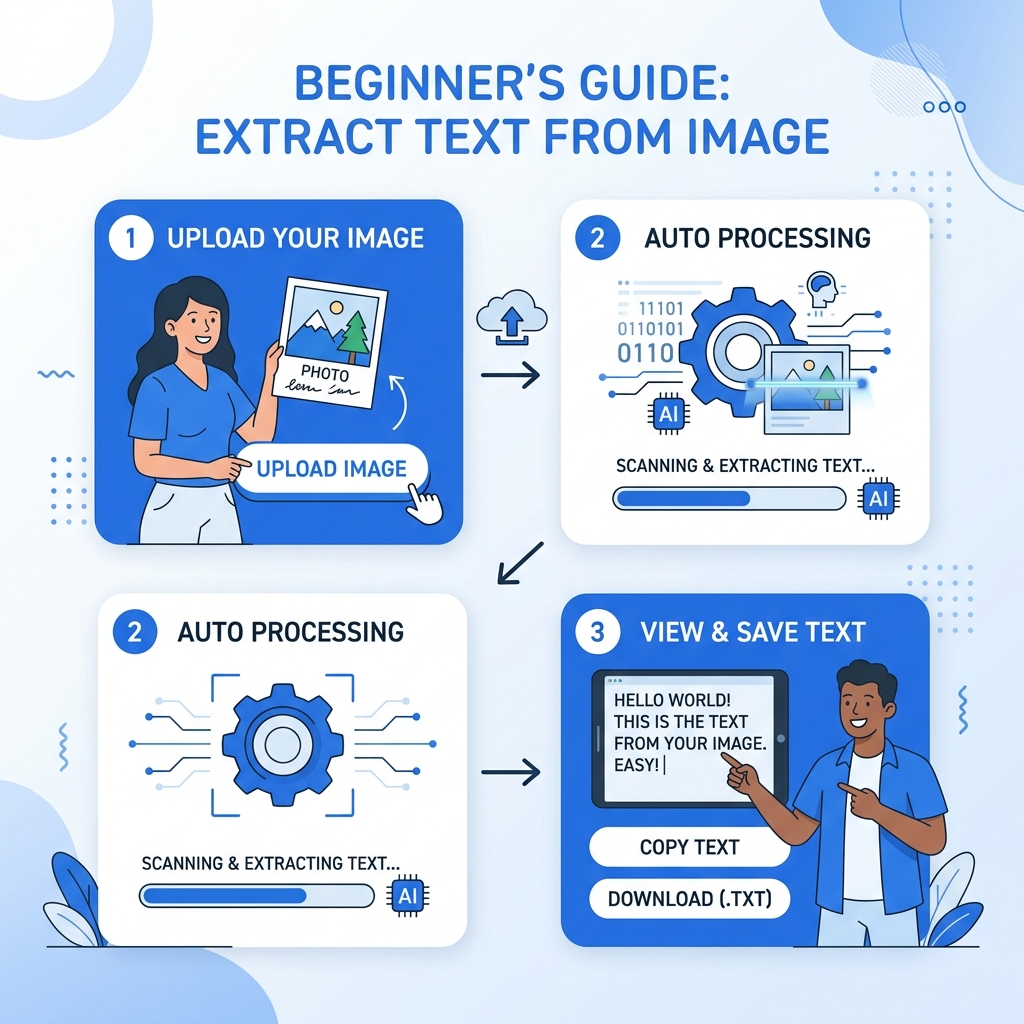
When you have a photo, screenshot, or scan that contains text, you can't simply click and select that text — it's part of the image. "Getting text from an image" means using technology called OCR (Optical Character Recognition) to read the text in the image and convert it to regular, editable text you can copy and paste.
Think of it like this: the image contains a picture of text. OCR turns that picture back into actual text.
The Simplest Way to Do It
If you just want to get text from an image right now, here's the fastest method:
- Go to ImageToText.net/tools/extract-text-from-image
- Upload your image (drag it or click "Choose File")
- Click "Convert to Text"
- Copy the result
That's it. No account, no download, no payment. It works on any device with a browser.
What Types of Images Work?
Almost any image containing text will work. Here are common examples:
Perfect for OCR (95%+ accuracy)
- Screenshots of emails, websites, or documents
- Photos of printed documents, books, or letters
- Scanned contracts, forms, or invoices
- Digital images with clear text
Good for OCR (80-95% accuracy)
- Photos of signs, menus, or labels
- Whiteboard photos
- Photos of book pages
- Images with colored text on colored backgrounds
Challenging for OCR (60-80% accuracy)
- Handwritten notes (especially cursive)
- Blurry or low-resolution images
- Text on complex backgrounds (patterns, textures)
- Very small or very stylized text
Choosing the Right Tool
We offer several tools optimized for different image types:
| What You Have | Best Tool |
|---|---|
| Any image with text | Extract Text from Image |
| A photo from your camera | Pic to Text |
| A phone picture | Picture to Text |
| A JPG file | JPG to Text |
| A PNG file | PNG to Text |
| A screenshot | Screenshot to Text |
| Handwritten text | Handwriting to Text |
Not sure which to pick? Just use Extract Text from Image — it handles everything.
Tips for Beginners
1. Start with a clear image
The clearer the image, the better the results. If possible:
- Use good lighting
- Keep the camera steady
- Fill the frame with the text area
2. Select the right language
If the text isn't in English, select the correct language from the dropdown before processing. This dramatically improves accuracy.
3. Don't worry about format
Our tool accepts JPG, PNG, JPEG, BMP, WebP, and more. Whatever format your image is in will work.
4. Try multiple images
Your first attempt might not be perfect. If results are poor, try:
- Taking a better photo with improved lighting
- Cropping the image to focus on the text area
- Using a different tool optimized for your content type
Understanding Your Results
After processing, you'll see the extracted text. Some things to know:
- Formatting may differ — The text will be plain text, not formatted like the original. Headings, bold, and columns won't be preserved
- Minor errors are normal — Even the best OCR isn't 100% perfect. Proofread the result
- Special characters may be missed — Symbols like ©, ®, and mathematical notation can be tricky
Frequently Asked Questions
Is it really free?
Yes, completely free with no limits. Our OCR runs in your browser, so there's no server cost for us to pass on to you.
Is it safe?
Your images are processed locally in your browser. They never leave your device and are never stored on any server.
Do I need to create an account?
No. No sign-up, no login, no email required.
Can I use it on my phone?
Yes. It works on any device with a modern browser — iPhone, Android, iPad, laptop, desktop.
What about PDF files?
Our tool is designed for image files. If you have a text-based PDF, you can usually copy text directly. If you have a scanned PDF (image-based), take a screenshot of each page and process them individually.
Start Now
Ready to try? Open Extract Text from Image and upload any image. You'll have the text in seconds. It's the simplest way to get text from any image, and it works every time.